A HubSpot CRM migration is ready when the team can find the right customer, trust the opportunity history and take the next action. An import-complete message proves none of those things. Use this checklist to map records and relationships, run a representative pilot, preserve historical dates and accept or hold the cutover.
It covers migration from another CRM or spreadsheets; the available import path depends on your source data and HubSpot account.
- DecideAgree what the team must find, trust and do after cutover.
- MapMap fields, relationships and record IDs.
- PilotTest a representative set of records before cutover.
- Cut overRun a cutover the team can operate.
- ReconcileCheck the result, then release the handoffs.
Judge readiness by whether people can locate the correct customer, rely on its opportunity history and act on it. A finished import alone shows none of that.
What should you decide before migrating to HubSpot?
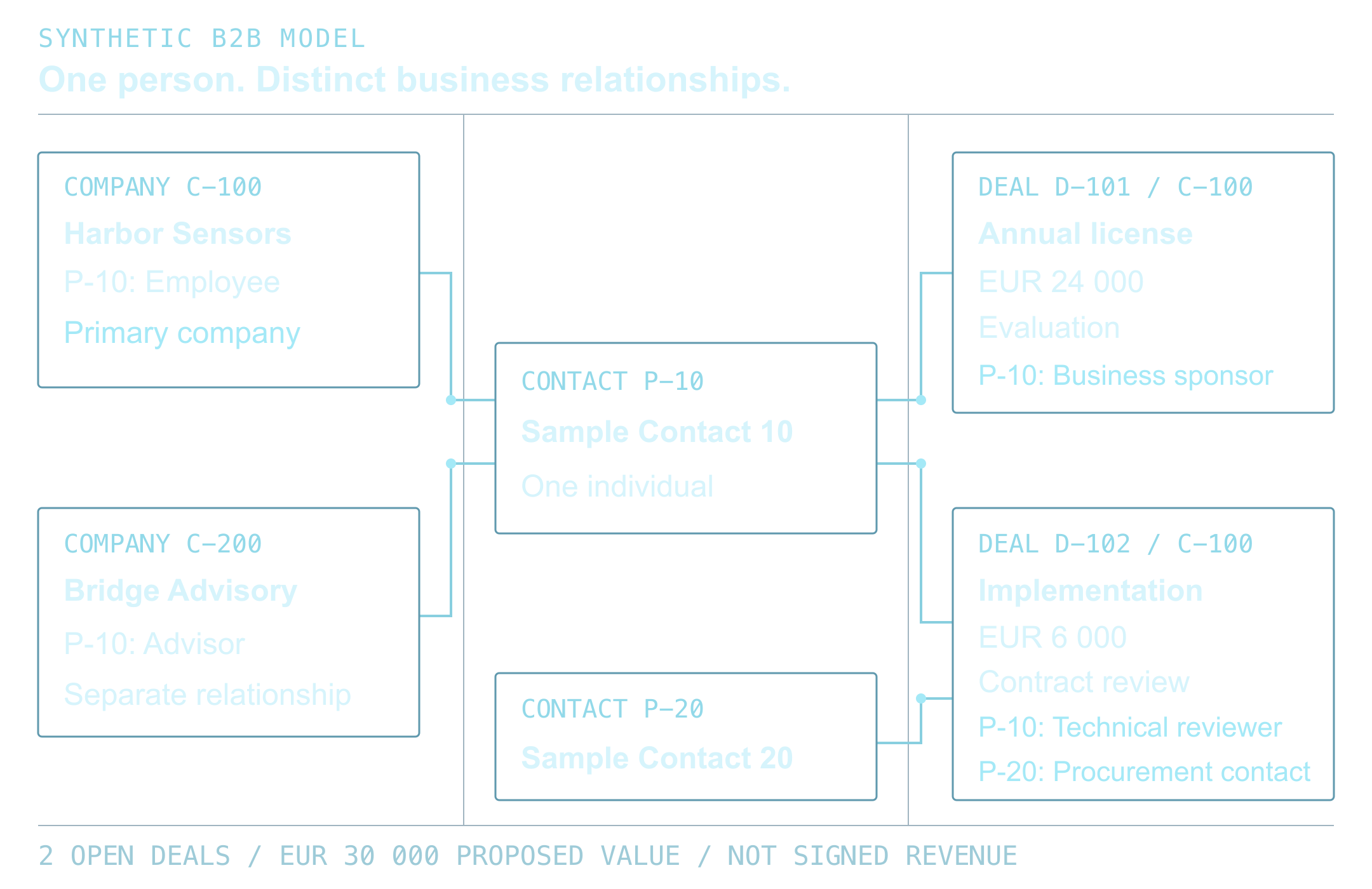
List the objects people use to run the business: companies, contacts, deals, tickets, products and the activities that explain decisions. For each object, record its source, owner, approximate record count, required fields, retention requirement and destination in HubSpot. Include relationships such as the contact on a deal and the company associated with that contact. A deal count without those relationships says little about whether sales can use the migrated data.
Inventory every form, integration, dashboard and automation that reads from or writes to the old CRM. Decide which ones must work at launch, which can wait, and which should retire. Give the migration a named decision owner and a short list of acceptance conditions before mapping begins. HubSpot’s import tool documentation distinguishes single-object imports from imports that create or update records and associations across objects. Choose the import method after the relationship map is clear.
How do you map fields and record IDs for a HubSpot migration?
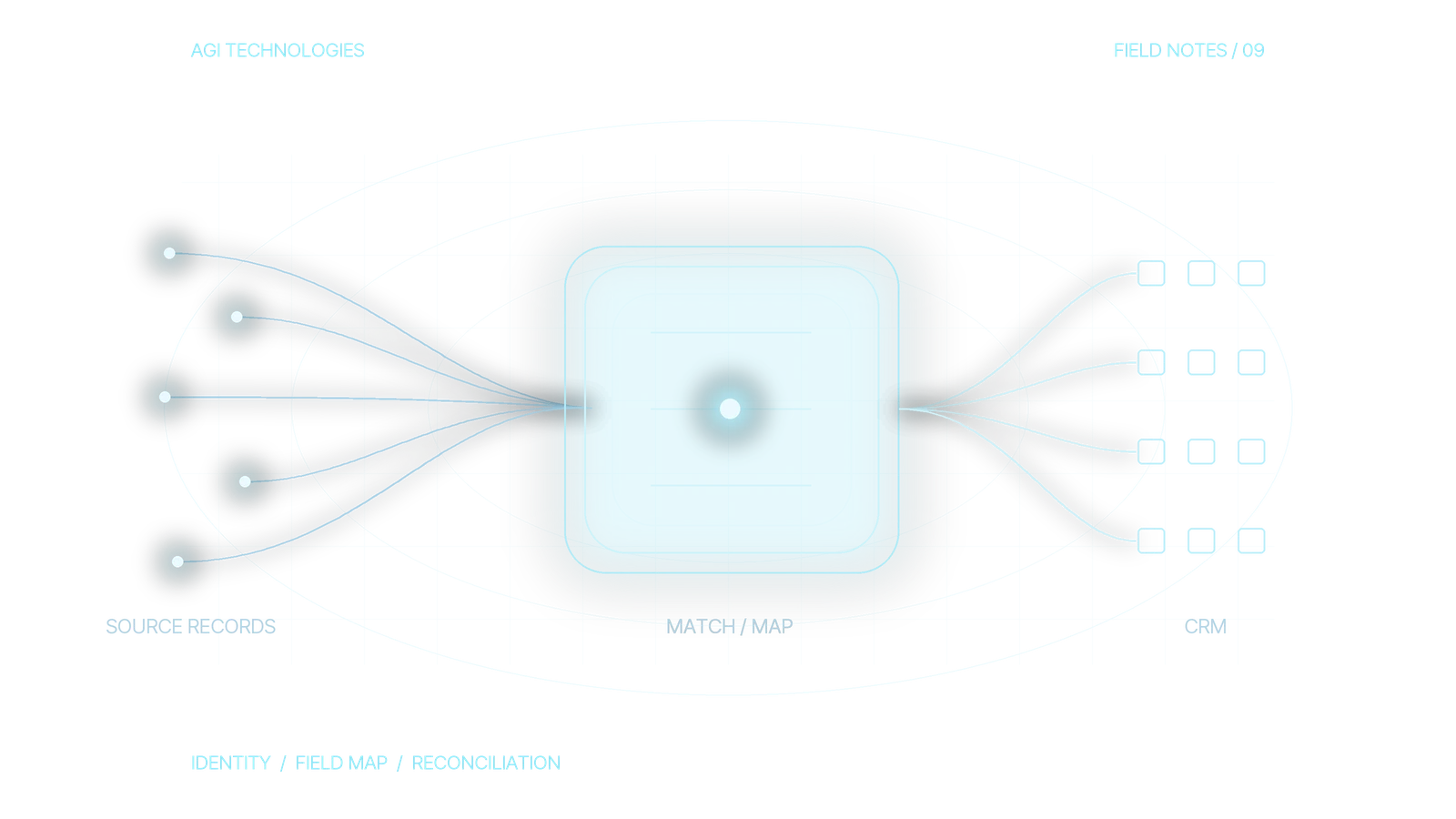
For each source field, specify the HubSpot object and property, data type, permitted values, transformation, source of truth and treatment when the value is missing. Keep the field map in a versioned file so reviewers can tell which rules produced an imported record. Do not use a person’s name or a company name alone as a match key. HubSpot documents email for contacts, company domain for companies, Record ID for existing records, and custom properties requiring unique values as possible identifiers in imports. The right key still depends on the source data and the records already in the portal. Review file-format requirements and deduplication behavior before preparing the pilot file.
Examples in this guide use fictional records and IDs. The mapping below shows the decisions to document for each source item.
| Source item | HubSpot destination | Match rule | Hold condition |
|---|---|---|---|
| Account AC-104, northwind.example | Company | Check the normalized company domain and retained source ID | Two source accounts share the same domain |
| Contact alex@northwind.example | Contact | Check email, then the intended company association | Email exists on a contact attached to a different company |
| Opportunity OP-82 | Deal | Use an agreed unique source key or a known HubSpot Record ID | Source key is absent or maps to multiple deals |
| Stage value “Sales accepted” | Agreed lifecycle or deal-stage property | Map only after the destination stage definition is approved | No equivalent stage or ambiguous historical meaning |
Keep the original value and transformation rule when a field changes meaning. For example, a source’s “Customer” label may describe a deal, a contact, or an account. A direct text replacement could silently change reporting. Confirm association labels and subscription requirements in the current multi-object import instructions before relying on them.
Keep historical activity dates explicit
Map Activity date for imported history. HubSpot’s activity import requirements say that an omitted Activity date is set to the import date and time. Retain the source timestamp and time zone, choose the supported file format and import time-zone setting, then check the displayed result. A note from April should not look like a new October interaction.
Resolve the underlying objects and relationships before preparing files. The worked HubSpot data model explains how to separate company, contact and deal context.
How do you test a CRM migration before cutover?
Build a small, representative test set before the production load. Include a new company and contact, an existing contact to update, a contact whose company match is ambiguous, a deal with a valid association, and a row with an invalid value. Write the expected result next to every row. Keep the pilot’s source file, field map, import settings and error export together. HubSpot’s import overview and sample files can help establish the supported format; they do not decide your business rules.
- Export a current snapshot of relevant HubSpot records so existing Record IDs and relationships can be checked.
- Run the pilot in the agreed environment and record what was created, updated, rejected or associated.
- Compare each observed result with its expected action, including fields that must remain unchanged.
- Review a record in the HubSpot interface with the sales or service owner who will use it.
- Resolve exceptions, revise the map, and repeat only the affected pilot cases.
Counts are a starting check. Inspect sample records across objects and verify owners, activities and associations. An apparently successful import may still leave a deal linked to the wrong company or a contact with a stale lifecycle stage. Record unresolved differences; the import-complete message does not count as sign-off.
Prepare a cutover that the team can operate
Name the final source export, the time window for the production load, and who may change records during that period. List integrations that need pausing or re-pointing, and the order in which they will restart. Decide how changes made after the export will be captured. Define who can stop the load and which operations can be repaired before cutover. Retain the affected fields and associations before the load, source-to-destination IDs, import settings and created-versus-updated counts. Prove the selected repair path in the pilot. A source export is not a whole-portal undo for overwritten values, relationships or triggered workflows.
Run the approved files in dependency order so a deal can point to the company and contact it needs. Existing emails, meetings, notes and tasks cannot be updated via import. A rerun is not a repair plan for those activities. Define how each historical activity will be created, associated and checked before the pilot; hold unsupported repairs for an approved alternative. HubSpot’s current multi-object guidance distinguishes create and update behavior for records and activities, and its error guidance explains failed matches and associations. Check the applicable behavior at execution time because product features and subscription entitlements can change.
Reconcile the result and release the handoffs
Compare source and destination counts by object and by agreed segment, then inspect the relationships and values that matter most to daily work. Confirm that a representative contact opens the correct company, an active deal has the right owner and stage, a historical activity has the intended association and original date, and a report applies the expected definitions. Test forms and integrations after they restart. Record the source record, destination record, expected result, observed result, reviewer and disposition for every exception.
Worked acceptance log: accept one result, hold the others
This log shows how to record a decision. Acceptance applies only to the specific checked record.
| Record and planned action | Expected and example inspection | Decision and owner |
|---|---|---|
| Contact C-17 → HubSpot 20017 Update an existing record | Expected: approved job title; owner 30001 retained. Example inspection: title matches the field map and owner remains 30001. | Accept this check. Operations records the decision date and record evidence. |
| Note ACT-9 → note 50009 on contact 20017 Create historical activity | Expected: 15 April, 09:30 UTC; correct contact. Example inspection: contact is correct, but date is 12 October, 10:00 UTC. | Hold historical-activity acceptance. Migration owner investigates the date mapping and approved repair; no blind reimport. |
| Deal OP-82 → destination not assigned Hold before creation | Expected: one confirmed company association. Example inspection: two companies fit the source key; identity remains unresolved. | Hold the deal. Sales operations resolves identity before a destination record is created. |
For each real check, record the source object/ID, destination object/ID, planned action, expected fields/date/associations, actual inspected result, exception, disposition, reviewer and decision time. Attach the field-map version and import reference. Leave uninspected outcomes pending. Keep source rows, created records, updated records, activities, associations and held rows as separate counts.
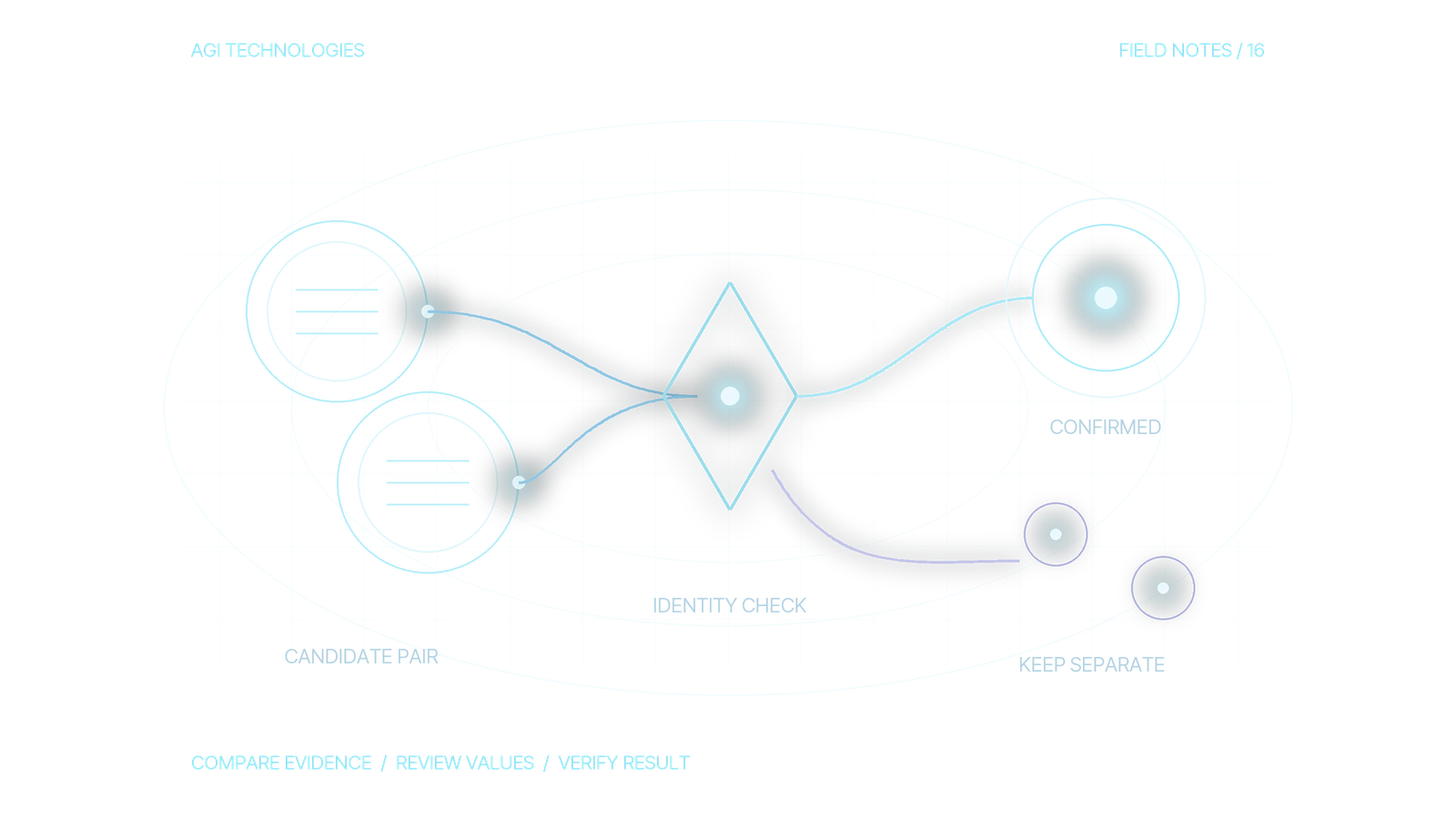
A hold should name the failed condition and the next investigation. Use the HubSpot deduplication guide for ambiguous-identity decisions; do not create a second record simply to clear an exception.
When an import outcome is unclear, inspect the import history and destination records before running the file again. A second run with a weak match key can create duplicates or change fields that were meant to stay fixed. HubSpot provides ways to review previous imports and diagnose import errors. Hand over after the process owner accepts the agreed cutover checks and records the unresolved exceptions with their owners. Keep the final field map, source export, created/updated record references and reconciliation log with the operating note.
For help scoping the map, associations and cutover checks, share the source CRM, required objects and intended cutover window through our HubSpot development and RevOps service. If Clay will later enrich records in the migrated portal, the Clay and HubSpot integration guide explains matching, field ownership and controlled CRM writeback. Those are separate decisions from the migration itself.
HubSpot documentation on import limits and activity dates linked in this guide was checked on 12 October 2026.
Reviewed by Andrii Gorbenko, founder of AGI Technologies