In this guide: decisions, examples and worksheets
Duplicate HubSpot contacts and companies split account history, confuse ownership and make reports harder to trust. A useful cleanup produces a verified record for each real entity, preserves the relationships that matter and closes the intake path that created the duplicates.
Start with a small reviewed batch whose identity evidence and retained fields are clear. This guide covers duplicates already in the CRM: how to classify pairs, choose retained values, inspect merge effects and prevent recurrence. Migration planning and enrichment writeback are separate tasks.
Resolve the incoming record against CRM identity evidence first, then choose an approved update, an eligible create or an exception queue. A repeated source row should return to its verified destination. Similarity identifies a candidate; it does not authorize a merge.
Which HubSpot deduplication action should you take? Update when incoming data belongs to one verified existing record. Merge only when two CRM records represent the same entity and their retained fields and relationships are approved. Keep different entities separate. Hold ambiguous matches and uncertain writes for investigation.

Why do HubSpot duplicates keep appearing?
HubSpot matching depends on the creation route and identifier. In particular, companies created through the API, including third-party sync apps, are not automatically deduplicated by domain. That exception matters when a researched Clay row is sent to a company-create action. HubSpot deduplication documentation.
Creation-channel matrix: identify the route before fixing it
On smaller screens, scroll to compare all columns.
| Entry route | Identifier or matching behavior | What to investigate |
|---|---|---|
| Manual contact creation | An existing email blocks another contact with that email. | Different emails may still belong to one person. |
| Manual company creation | An existing primary domain produces a warning. | A warning does not define your account identity policy. |
| Contact form | Existing email updates the contact; browser-cookie behavior also depends on form settings. | Check repeated submissions from a shared device. |
| Company form | A supplied domain can match an existing company. | Check the actual company properties submitted. |
| File import | Use Record ID, a supported unique property, contact Email or company domain. | Separate existing-record updates from approved new records. |
| Company API create | Domain alone does not trigger automatic deduplication. | Inspect lookup, identity decision and create/update action. |
Sources: creation-route rules, form and cookie settings, and import identifiers.
Import edge cases: a blank Record ID in an ID-mapped import can create a new record. A custom unique identifier can distinguish companies that share a domain; contact Email must still be unique when included. Custom unique-value rules do not enforce identity through forms. Confirm which identifier the import actually maps. Record ID and form limitations; custom identifier behavior.
Trace recent duplicates back to their source. Capture the import file, form, connector or manual action, the identifiers supplied and whether the process checked for an existing record. Repair the writer before committing to a large cleanup batch.
1. Define what counts as the same entity
Choose the unit of identity before comparing fields. A company record might represent a legal entity, operating account or regional business. A shared website domain does not resolve that policy. Similarly, two employees with the same name are not one contact.
Use three decisions in the review worksheet:
Confirmed duplicate: evidence establishes the same person or account under the agreed identity policy.
Separate entities: the records represent different people or businesses, even if some fields match.
Unresolved: the evidence conflicts or is insufficient. Assign an investigator and preserve both records.
Normalize comparison values in the worksheet while retaining the original CRM values. For domains, document how you handle protocol, paths and subdomains. For phone numbers, retain country context. Do not remove meaningful parts of an identifier merely to increase the number of matches.
On smaller screens, scroll to compare all columns.
| Candidate pair | Evidence to inspect | Suggested decision |
|---|---|---|
| Contact has an old work email and a new work email | Verified person identity, employment history and related account context | Review whether it is one person. Different emails alone neither prove nor disprove identity. |
| Same contact name and company | Email, role history and an authoritative external identifier where available | Hold if identity is not established; names are candidate signals. |
| Two companies share a group website | Legal or operating entity, territory, contracts and account hierarchy | Keep separate if they are distinct accounts under your policy. |
| Same external customer ID, conflicting company names | Source system ownership and whether the identifier is unique within that system | Investigate a rename, source mapping error or identifier collision before merging. |
| One record is a customer; another is a prospect | Contracts, deals, associations and the reason for the status difference | Resolve identity and downstream consequences before selecting retained values. |
2. Build a review queue with a useful before-state
Prioritize pairs that obstruct current work: an active opportunity, a customer handoff, conflicting account ownership or an integration repeatedly creating records. Keep low-confidence pairs out of an automatic merge path.
Capture both Record IDs, relevant property values, owners, primary company relationships, associated deals and tickets, source identifiers and active automation. Include the proposed decision, retained values, reviewer, reason and review time. Restrict the export to authorized staff and follow your retention rules.
This snapshot supports investigation and manual recovery planning. An export of selected fields may omit activity history, relationships or system state, so it cannot undo a merge.
Where available, HubSpot's duplicates manager lets a reviewer compare potential contact or company duplicates and merge or reject suggestions. Individual duplicate management requires Professional or Enterprise; bulk management and custom detection rules have Data Hub Professional or Enterprise requirements. Check permissions and the portal's current feature availability before planning a bulk operation. HubSpot duplicate management documentation.
3. Choose the primary record and retained values deliberately
Choosing the oldest or most complete record is a shortcut that can preserve stale data. Establish which source owns each material field. A contract system might own customer status; the revenue team might own the account owner; a research provider supplies dated enrichment evidence. After the merge, a field-level enrichment refresh policy keeps that evidence dated and current.
For a confirmed duplicate, prepare a field-level decision: what should remain, where that value came from and who approved it. Resolve conflicting owners and primary relationships with the business owner. Preserve the evidence behind an exclusion or communication restriction; a merge does not constitute new permission to contact someone.
Do not send the pair to an LLM and let its similarity judgment execute the merge. AI can summarize conflicting fields or suggest questions for a reviewer. Record identity and the permitted CRM action still need explicit acceptance rules.
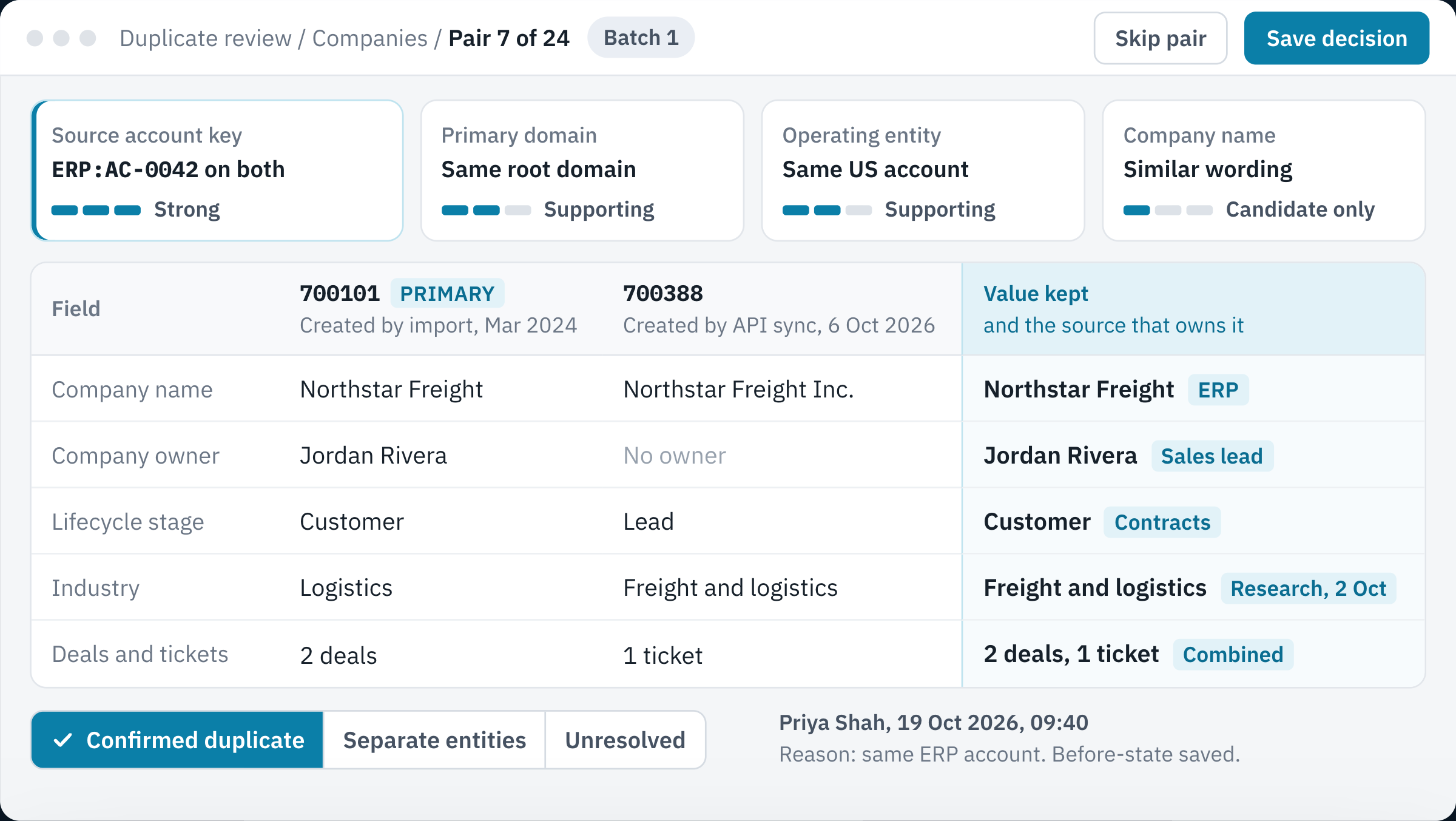
- Match signalsA shared source account key is strong evidence, and a similar name only makes the pair a candidate.
- Kept valuesEach surviving value names the system or person that owns it.
- Three decisionsThe reviewer marks the pair as a confirmed duplicate, separate entities or unresolved.
- Audit noteThe reviewer, time, reason and saved before-state stay with the pair.
4. Check merge effects before clicking Merge
HubSpot merges cannot be unmerged. By default, the resulting record receives a new ID and both originals leave active workflows. In the Primary ID Preservation public beta, the primary ID and its workflow enrollment remain. Primary values generally win, with exceptions. Read the portal's current beta state and retrieve the actual resulting record. HubSpot merge behavior and limitations.
On smaller screens, scroll to compare all columns.
| Merge consequence | Business check |
|---|---|
| Activities and associations combine. | Confirm that the consolidated history belongs to one entity. |
| The primary record’s primary company takes precedence; the secondary primary label is removed. | Confirm the account used for ownership and routing. |
| The furthest lifecycle stage is retained. | Investigate a customer/prospect conflict before approval. |
| For contacts in accounts with marketing contacts, the more marketable marketing status survives. | Check the resulting marketing status, communication restrictions and campaign exclusions. A primary non-marketing value does not necessarily win. |
| Updated property timestamps reflect the merge time. | Keep source observation dates in the review worksheet. |
These consequences are documented in HubSpot's object-specific merge rules. They explain why selecting a primary record alone is insufficient.
Illustrative contact pair: the primary record is non-marketing and the secondary is marketing. HubSpot documents a marketing result for that pair where marketing contacts apply. Choosing the non-marketing record as primary does not preserve its status. Check the retained contact against your communication restrictions and campaign exclusions before using it. Marketing status is not permission to contact someone.
See HubSpot’s contact merge exceptions and marketing-contact definitions. The example does not establish a new charge or contact-tier increase; one marketing contact already existed in the pair.
Before approving a pair, ask which connected tools store its IDs, which automations depend on its properties and what happens to its associated records. Use disposable test records or an appropriate test environment for a representative rehearsal. Never use an unreviewed live customer pair merely to discover merge behavior.
If the change would disrupt an active sales or service process, arrange the operational handoff before merging. A reviewer should know who will repair a connector mapping, inspect outstanding tasks and reconcile reporting if the result differs from the intended state.
5. Verify the result and record the outcome
After a controlled merge, retrieve the resulting record and save its actual Record ID. Compare retained values, account relationships, deals, tickets and ownership against the approved worksheet. For a contact merge, also verify marketing-contact status where applicable, communication restrictions and campaign exclusions. Inspect the affected automation and external mappings. Verify the resulting state before continuing the batch.
A missing response or timeout leaves the result uncertain. Check both original references, merge history and the resulting entity before attempting another operation. The n8n HubSpot integration guide explains how to distinguish an uncertain write from a failed one.
For separate entities, save the reason and the identifier policy that distinguishes them. For unresolved pairs, keep a named review owner and next check. A lower duplicate count is not sufficient evidence that the CRM is more accurate.
6. How do you prevent the next duplicate?
Define a create-versus-update decision for each writer. A known destination Record ID supports an update. A candidate match needs review under your identity policy. An unmatched record can proceed to creation only when required identifiers and business eligibility have passed.
Keep update and create imports separate, validate missing identifiers and inspect the import outcome. For integrations, store the verified source-to-destination mapping and reconcile concurrent or uncertain creates. Do not assume that looking up a domain once prevents two workers from creating the same company.
For Clay enrichment, resolve the target before writing fields. Use the matching and writeback guide for incoming enrichment decisions. For a migration, use the CRM migration checklist for mapping and cutover. Those controls complement cleanup of existing records. For ongoing upkeep after the cleanup, our HubSpot support and maintenance service reviews duplicate candidates and inspects failed integration updates.
Which tool should detect duplicates? Use HubSpot’s duplicate management to review likely pairs that already exist. For new records, the integration or enrichment tool that writes to HubSpot should look up the record ID or another agreed identifier before it creates anything, and hold uncertain matches for review.
A Clay company row: update, create or investigate?
Examples in this guide use fictional records and IDs. A table contains source account ERP:AC-0042, domain northstar.example and an updated industry classification. HubSpot company 700101 already represents that same account. Sending the row to Create object would use a creation path without automatic domain deduplication. The intended result is an update to 700101, with its owner and relationships preserved.
Resolve the known mapping. Verify that
ERP:AC-0042 → HubSpot company 700101refers to the expected entity in this portal. A mapping from a sandbox or another portal is not interchangeable.If no verified mapping exists, look up candidates. Clay's Look up object supports property filters, including HubSpot Object ID. Multiple filters use AND by default. Choose filters deliberately: an outdated name combined with a correct domain can conceal a useful candidate. Clay HubSpot action documentation.
Make the identity decision. Treat one returned company as a candidate until identity is checked. Check the source account key, operating entity and relationships. Several companies at a group domain, or conflicting source IDs, belong in review.
Write only approved fields. Clay's Update object requires the HubSpot Object ID. Map the researched industry to its agreed field; do not replace customer status or sales ownership merely because an enrichment column has a value. Clay update inputs.
Verify and persist the destination. Retrieve the updated company, compare the intended field and protected values, and save the source-to-destination mapping. If a create response is lost, reconcile that attempt before authorizing another create.
For a direct API integration, HubSpot documents updating an existing company by Record ID and reading companies through a custom unique identifier. A source account key must be defined as unique in the appropriate property and object; an ordinary text column is not a uniqueness constraint. HubSpot Companies API; unique property configuration.
Keep the portal and object type alongside the destination ID in the mapping. HubSpot Record IDs are unique within an object type, so a contact and a company can have the same ID. A bare number is insufficient context for a cross-system repair. HubSpot Record ID scope.
Subdomain trap: Clay's lookup and company write actions reduce domains to the root by default, with separate options to retain subdomains. If your account policy distinguishes lab.northstar.example from northstar.example, inspect both settings. Do not let a formatting default silently decide that they are one account. Clay domain options.
This sequence is a recommended control design. A lookup followed by a create does not by itself serialize simultaneous writers or prove that a timed-out write failed. Validate those cases with disposable records in your own configuration. Use the Clay and HubSpot integration guide for the wider enrichment setup and this review process for duplicate and merge decisions.
How do you know the cleanup worked?
Use the eight decision test cases as a starting worksheet. The rows specify expected decisions.
On smaller screens, scroll to compare all columns.
| Input to review | Expected decision | Acceptance evidence |
|---|---|---|
Source ERP:AC-0042 maps to company 700101. | Update the verified destination, without a new create. | Same entity, approved field change and protected values confirmed. |
Two operating entities, 700201 and 700202, share group.example. | Keep separate under the operating-account policy. | Distinct source IDs and account hierarchy documented. |
| An update-import row has a blank Record ID. | Block the row from the update batch. | Resolve the ID or move an approved new entity to a create batch. |
| A create response is lost. | Reconcile the uncertain attempt before another create. | Destination, source mapping and request history checked. |
Rehearse with disposable test records. Include one approved merge, one separate-entity decision and one unresolved pair; inspect the actual ID, retained fields, associations and automation before expanding the batch. Keep expected results beside observed results, with the portal, reviewer and date. Use an export for investigation; it cannot fully restore merged records.
Track confirmed duplicates, rejected suggestions, unresolved pairs, post-change discrepancies and new duplicates by intake source. Use separate measures for cleaning the backlog and preventing recurrence:
Review disposition: confirmed duplicates, separate entities and unresolved pairs within the same reviewed population.
Merge correctness: approved merges that satisfy all retained-field, association, ID and automation checks.
Writer recurrence: confirmed new duplicates attributable to each intake source, alongside the number of records processed through that source in the same period.
Do not treat a lower candidate count as proof of a cleaner CRM. A narrower detection rule can hide duplicates, and an incorrect merge can remove the visible pair while damaging account history. Keep a stable review definition and examine exceptions as well as counts.
Frequently asked questions
How do you find duplicate contacts in HubSpot?
Open CRM > Contacts (or Companies), then Actions > Manage duplicates. HubSpot lists likely pairs by comparing fields such as name, email, phone and company name. The tool needs a Professional or Enterprise subscription and covers contacts and companies; deals and tickets are deduplicated with Record IDs or unique-value properties during import. Review each pair against the identity rules in step 1 before merging.
Can you merge companies in HubSpot?
Yes. You merge records in pairs and choose which property values to keep. Associations from both records carry over to the merged company. Check the primary company labels and the automation first: merged records are unenrolled from all workflows.
Can you undo a merge in HubSpot?
No. HubSpot states that merged records can’t be unmerged. The merged record keeps the previous record IDs, but restoring a separate record means creating it again. Save the before-state described in step 2 for every pair you merge.
Sources: HubSpot’s merge records and duplicate management documentation.
Scope the cleanup around a business decision
Bring representative duplicate pairs, the affected handoff or report and the systems that create records. AGI Technologies' HubSpot development and RevOps service can scope matching rules, ownership, associations and integration controls around that problem.
A useful first deliverable is a reviewed pair worksheet, retained-field policy, source repair plan and acceptance checks. The project deliverables reference shows how to document a defined systems scope. If duplicates are only part of the problem, the HubSpot portal audit checklist shows what to review next.
Book a 30-minute call or send an inquiry to discuss the CRM decision you need to trust.
Reviewed by Andrii Gorbenko, founder of AGI Technologies