In this guide
What are the HubSpot lifecycle stages? HubSpot’s default lifecycle stages are Subscriber, Lead, Marketing Qualified Lead, Sales Qualified Lead, Opportunity, Customer and Evangelist, plus Other for records that fit none of them. HubSpot tools move a record’s stage forward only; moving it back needs a manual change or clearing the value first. Teams can edit the default stages or add their own.
A lifecycle stage should tell marketing and sales what has been established about a contact or company and what action comes next. A form, import, association or workflow can advance the label before the receiving team has agreed what it means. The result is a handoff queue and funnel report that look complete but need manual interpretation. This guide shows how to define stages for a B2B process, assign ownership to each transition, test automation, and check whether reporting still answers the intended business question.
- Subscriber
- Lead
- Marketing Qualified Lead
- Sales Qualified Lead
- Opportunity
- Customer
- Evangelist
Other holds records outside these stages. HubSpot tools only advance a stage; to set an earlier one, edit it manually or clear the value first.
How should you define each lifecycle stage?
HubSpot uses lifecycle stages to categorize contacts and companies as they move through marketing and sales. Its lifecycle-stage guidance describes default stages and the ways records can be updated. Start by writing an entry definition for each stage your team will use. State the required evidence, the record object, the person who accepts it, and the next action. Define the stage at the account level separately if company qualification differs from contact qualification.
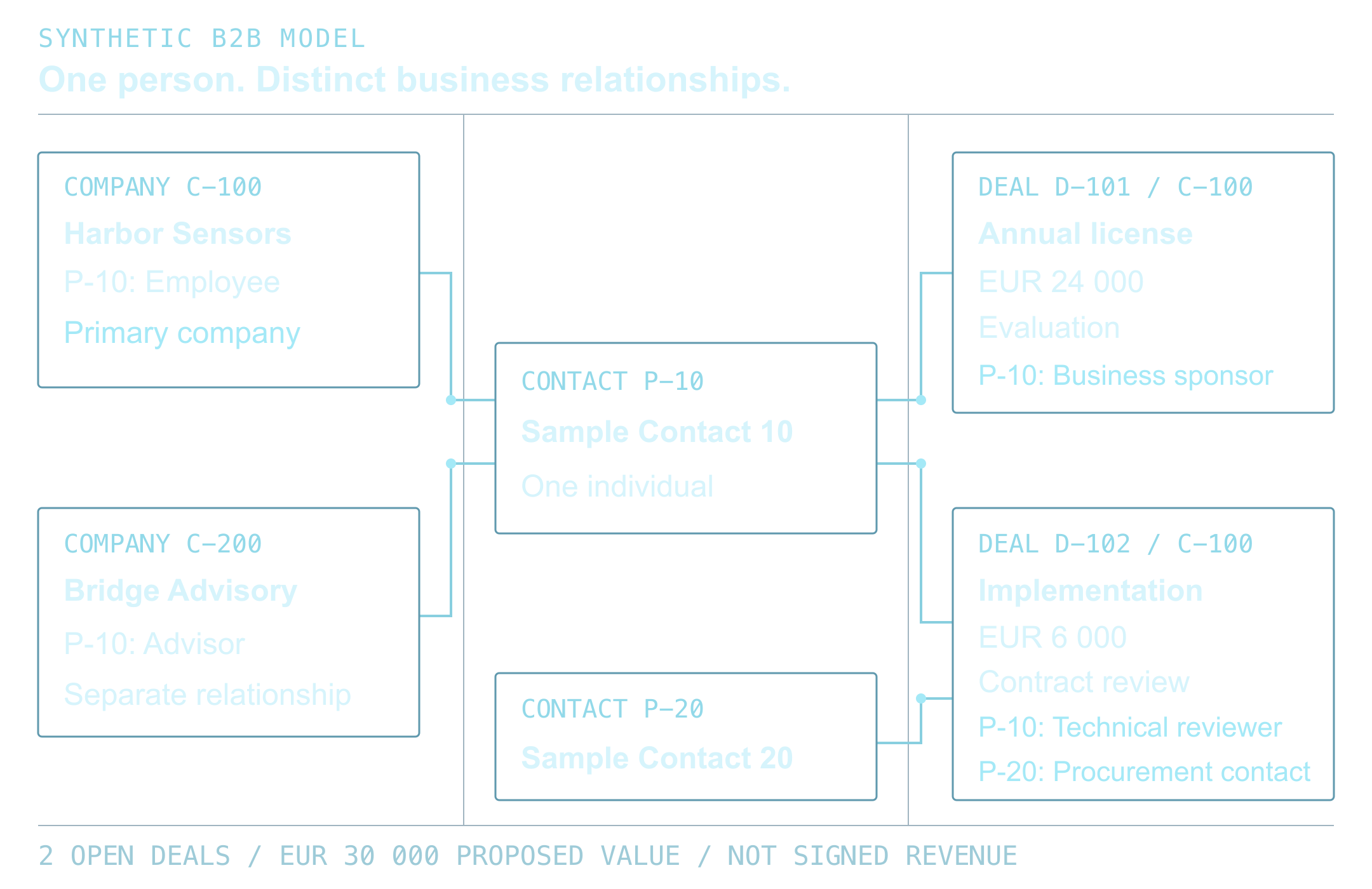
Keep the fields separate. Lifecycle stage describes the contact or company relationship. The contact Lead Status property tracks work within SQL (its default values are explained in HubSpot Lead Status values); it is separate from the Leads object pipeline. Deal stage tracks a particular opportunity. One company can have several contacts and deals at different points, so copying one status to every associated record can misstate the account. HubSpot allows custom lifecycle stages, but an extra stage is useful only when its evidence and handoff differ from an existing one.
The table below is an example model. Examples in this guide use fictional companies and records. A team should adapt the definitions to its sales process and portal settings.
On smaller screens, scroll to compare all columns.
| Stage | Entry evidence | Decision owner | Next action |
|---|---|---|---|
| Lead | Identified inquiry with a valid contact route | Marketing operations | Check identity, source and eligibility |
| Marketing Qualified Lead | Documented fit and engagement criteria are met | Marketing owner | Send a reviewable handoff to sales |
| Sales Qualified Lead | Sales accepts the record under agreed criteria | Sales owner | Record the accepted next step or reason to return |
| Opportunity | An associated deal meets the team’s opportunity definition | Deal owner | Manage the specific deal in its pipeline |
| Customer | The approved customer event is recorded | Revenue operations | Confirm account and contact handling after close |
Document how a stage can change
For each transition, record its trigger, source field, allowed starting stages, owner, exception rule and audit trail. Decide whether an import, form, connected app, HubSpot setting, or workflow is authorized to make the change. If several systems can write the same property, document which one wins and how conflicts are reviewed. A stage change should not depend only on a numeric score when the score’s inputs or meaning are unclear to the receiving team.
HubSpot tools move the default Lifecycle stage forward in its configured order; clear its value before using those tools to set an earlier stage. A manual backward edit clears the greater-stage legacy Became a [stage] date and populates the earlier-stage date. Newer calculated stage properties are not cleared by backward movement. These are different reporting histories; see the documented reset behavior.
Before a reset, save the current stage, relevant date values, reason and correction owner. Identify which date property the affected report uses, then compare its result before and after on a test record. A record re-entering nurture does not automatically need an earlier lifecycle stage; a separate nurture disposition can preserve the established buying history.
How should lifecycle stage automation work?
Inspect automatic creation, association and app settings alongside workflows. With company lifecycle sync enabled, the primary associated company can affect the contact stage. Check the lifecycle sync settings and the account’s workflow entitlement. Before turning on a workflow, inspect the portal’s existing automatic stage settings and the property history of sample records. A new workflow should have a clearly defined place among the current writers.
- Use an enrollment rule that names the record type and required evidence.
- Check the current stage and existing customer or open-deal state before changing it.
- Set or confirm the responsible owner before creating a sales handoff.
- Send missing data, ambiguous associations and rejected handoffs to a visible review path.
- Keep a test record and the expected result for each branch of the rule.
Do not treat a stage update as proof that a lead was contacted, accepted or converted. The stage, owner action and outcome should be recorded as separate facts. That distinction lets the team measure where handoffs wait without promising that a change in CRM labels will improve revenue.
Work through one MQL-to-SQL decision
Synthetic design example. It has not been run in a HubSpot portal. Contact DEMO-104 at harbor.example is an MQL. Its qualification evidence is complete, its contact owner is active, and an authorized sales user has recorded acceptance with a time and next step. There is no customer or open-deal conflict. The custom field sales_acceptance is set to accepted; it is not a default HubSpot property.
On smaller screens, scroll to compare all columns.
| Decision point | Expected action | Evidence to inspect |
|---|---|---|
| MQL, confirmed acceptance, valid owner, no conflict | Advance the contact to SQL once. Preserve its owner, original source, company associations and all deal stages. | Acceptance recorded by an authorized person, qualification evidence and next step; property history identifies the approved writer. |
| Owner absent or inactive | Hold the stage change for the queue owner. Do not manufacture an owner or mark the handoff accepted. | Missing-owner reason and a named person responsible for resolving it. |
| Customer or existing open opportunity | Do not use the new-lead transition. Review the request with the responsible account or deal owner. | Relevant contact, company and deal state; no automatic downgrade or duplicate opportunity. |
| Company relationship or acceptance evidence unclear | Hold for review. Do not copy a company stage or infer acceptance from a score. | Confirmed primary company, association policy and the acceptance record. |
| Sales declines the MQL | Leave the lifecycle stage unchanged under this rule. Record a rejection reason and the agreed nurture or correction action. | No SQL change in history; a reviewable reason and next owner. An incorrect existing stage needs a separate correction policy. |
For DEMO-104, the expected result is SQL with the same owner, source and associations. Inspect the saved stage, writer and timestamp alongside the acceptance record. Replay the same acceptance in the test process: the record is now SQL, so this MQL-only rule should make no further change. Then run each hold condition. These are acceptance criteria to test. Passing them does not rule out conflicts from concurrent writers.
Test the records that make rules fail
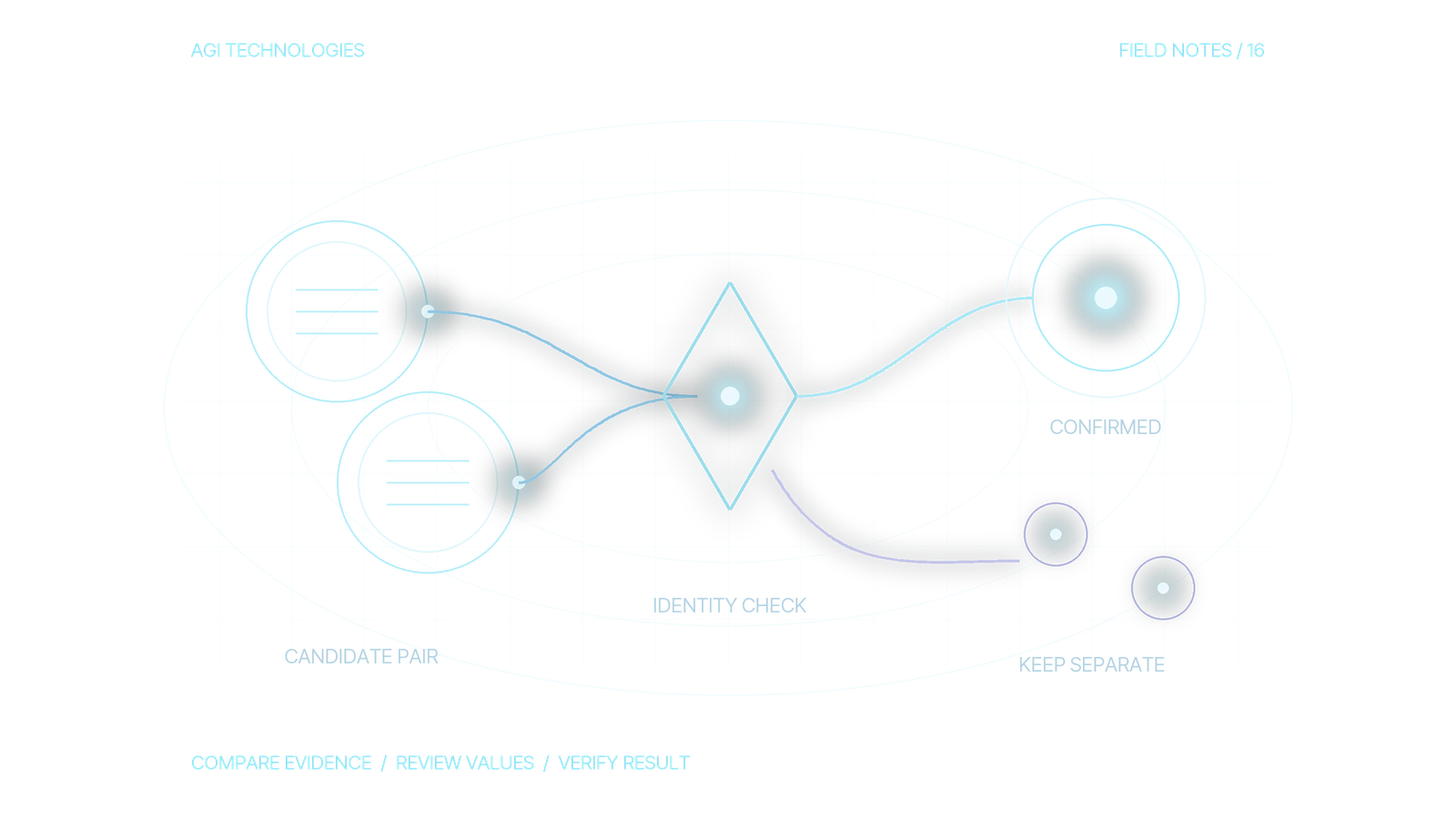
A clean new inquiry does not expose missing owners, existing customers or competing company associations. Use test records with expected states, then compare those expectations with actual portal behavior in a safe test process.
On smaller screens, scroll to compare all columns.
| Test record | Trigger | Expected check |
|---|---|---|
| New inquiry at harbor.example | Form submission | Verify identity and eligibility before the first handoff |
| Existing customer contact | New content request | Preserve customer status; route the request without resetting history |
| Qualified contact with no owner | Fit criteria met | Hold the handoff and alert the queue owner |
| Contact linked to two companies | Association sync | Confirm the primary company and the permitted sync rule before accepting the stage |
| Former opportunity returning for nurture | Requalification request | Review the earlier-stage policy and reporting effect before a reset |
Inspect property history and associated objects after each test. Check whether the owner can find the evidence behind the transition and whether a failed branch leaves a reviewable reason. If a test updates the wrong stage, first identify the writer and triggering condition. Adding another workflow without that diagnosis can make the property harder to trust.
Check the report against the decision it supports
Build a small validation report before changing the full portal. Compare stage counts with accepted handoffs, and inspect the records behind a few rows. HubSpot’s custom funnel documentation explains that standard funnel stages use the built-in Lifecycle stage or Deal stage properties and their stage timestamps. A custom label stored in another property will not automatically behave like a lifecycle stage in that report. The linked funnel builder is documented as beta with Professional or Enterprise availability across the listed Hubs; confirm access in your account.
Document how the report handles skipped stages, stage resets, contact-company differences and the selected time window. If a team wants to report on sales acceptance, use the recorded acceptance evidence; a Sales Qualified Lead label does not always represent it. Review the report with the team that will make decisions from it, then record the definition and owner so a later workflow edit does not silently change the numbers.
Keep the model usable after launch
Assign an owner to stage definitions, workflow changes, exceptions and periodic sample review. When a new product line or sales motion changes qualification, update the written definitions, test cases and reports together. HubSpot’s custom-stage documentation notes the permissions needed to edit stages; check the current account setup before changing the model. Keep the stage definitions, authorized writers, property-history check and correction owner in one operating note. If the issue is which object should hold the evidence, use the HubSpot CRM data model guide before adding another property or stage.
If stage counts disagree with the sales queue, bring the current definitions, one anonymized record history and the report’s date filters to a review. We can help map the missing transition or reporting rule through our HubSpot development and RevOps service. For a related practical example of ownership exceptions, use the HubSpot routing test lab. Its records illustrate routing decisions; the lifecycle model here defines what each stage means and when it may change.
Book a 30-minute call or send an inquiry to review your lifecycle stage definitions.
Reviewed by Andrii Gorbenko, founder of AGI Technologies